Instagram ERPNext Integration

Frappe App
Introduction
This application provides a seamless integration between Instagram and ERPNext, enabling users to effortlessly post content and upload stories directly from the ERPNext system. With this integration, users can streamline their social media management.
Key Features
Seamlessly upload posts, stories, and reels directly from ERPNext with our integrated Instagram solution.
Prerequisites
- Facebook developer account and set Marketing API.
- Link the Instagram page to the Facebook business account or page.
Setup Meta Developer Account
- To integrate Instagram with ERPNext, you need to either create a new Facebook developer account or log in to an existing one.
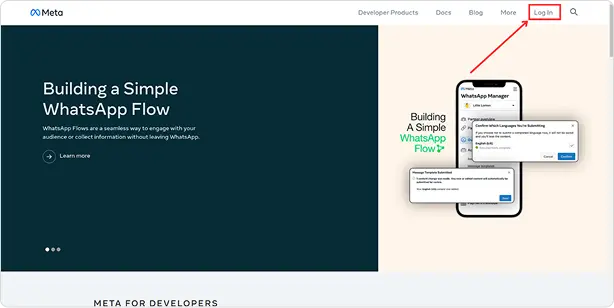
- Generate a new application to obtain the necessary credentials for uploading posts.
- Click on "Create App" to display the steps for creating an application.
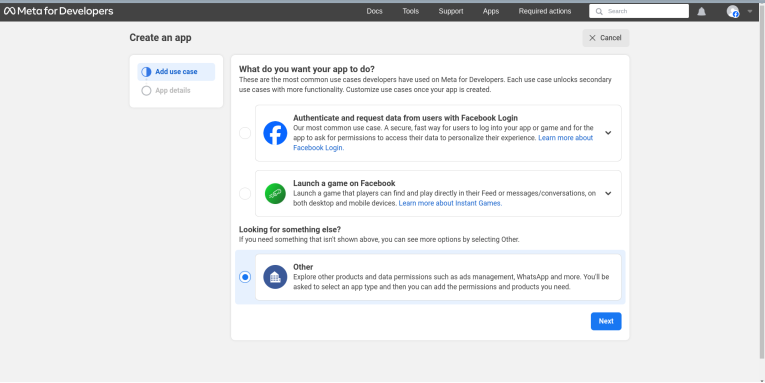
- Select the "Other" option to upload posts and stories from the Instagram page.
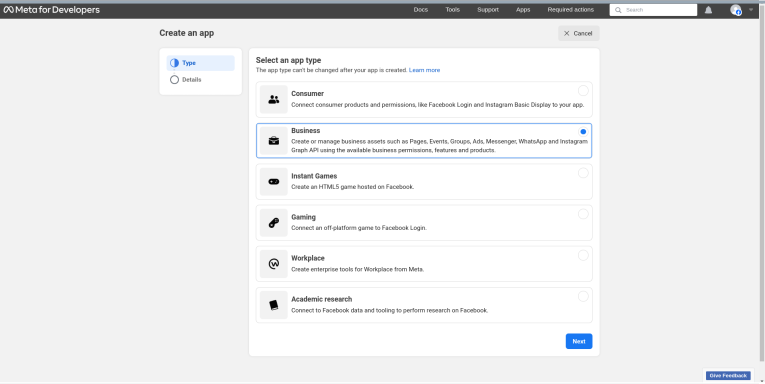
- After clicking "Next," showcase the options for selecting the type of application.
- Choose "Business" to access the API for posting images and getting the leads.
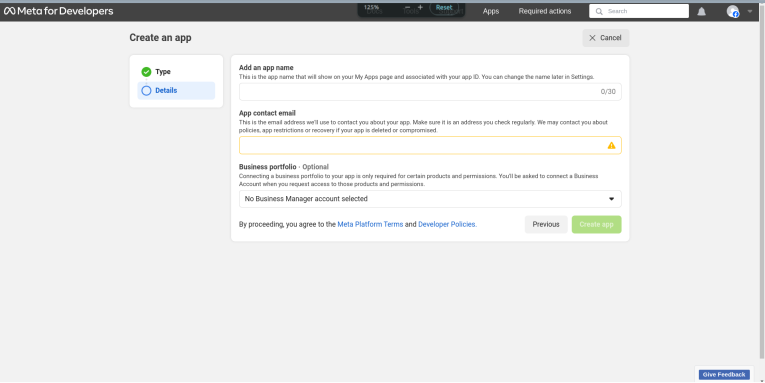
- The next step is to provide the app name and email address. If you have a Facebook business account, select the appropriate account.
- Setup the marketing API.
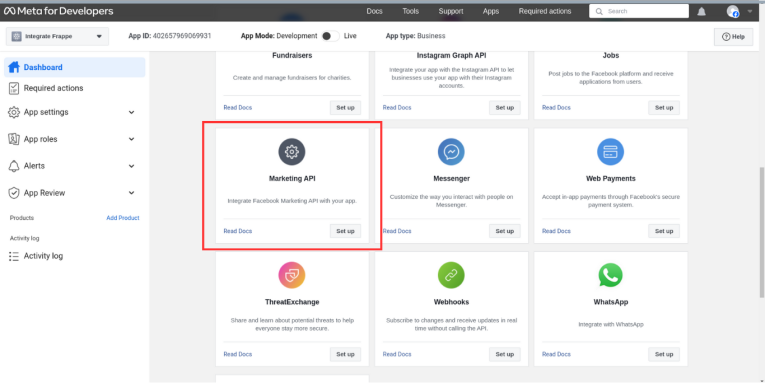
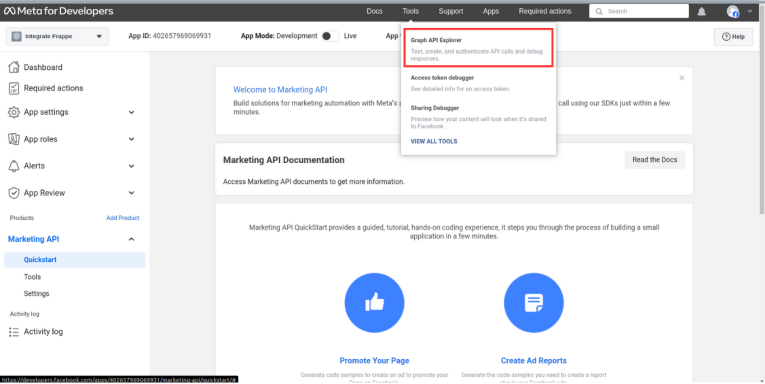
- Once you've set up the Marketing API, navigate to the "Graph API Explorer" by clicking on the "Tools" menu in the navbar. From there, you can configure permissions and generate a token.
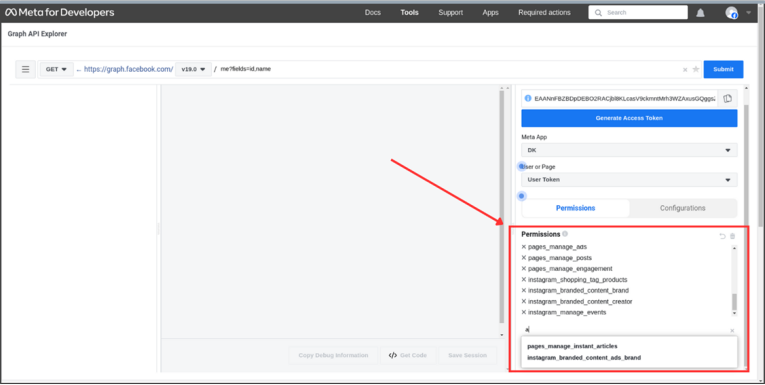
- Select all the below-listed permissions as shown in the image below.

read_insights
pages_manage_cta
ads_read
instagram_manage_comments
leads_retrieval
pages_manage_metadata
pages_manage_posts
instagram_branded_content_brand
publish_video
pages_show_list
business_management
instagram_manage_insights
instagram_manage_messages
pages_read_user_content
pages_manage_engagement
instagram_branded_content_creator
catalog_management
ads_management
instagram_basic
instagram_content_publish
pages_read_engagement
pages_manage_ads
instagram_shopping_tag_products
instagram_manage_events
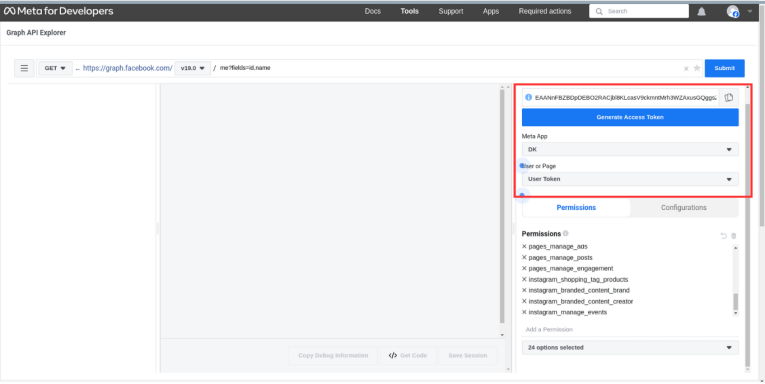
- Select the user or page where you are to post, then generate an access token by clicking on "Generate Access Token."
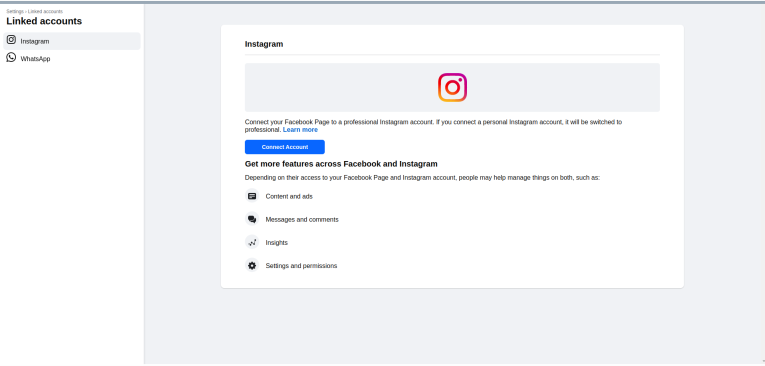
- To link your Instagram account with a Facebook page, go to the Facebook page > settings > Linked Accounts. Then, choose Instagram and connect your Instagram page account.
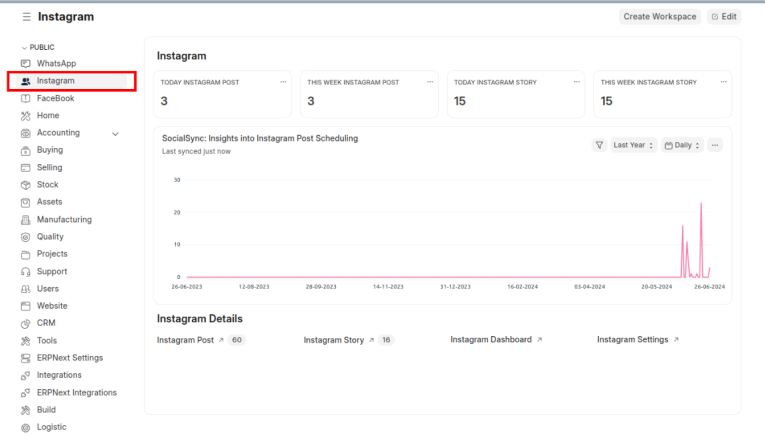
Workspace
- In the Instagram workspace, you can access the Instagram Post, Instagram Story, Instagram Settings, Cart Views, and Line Chart.
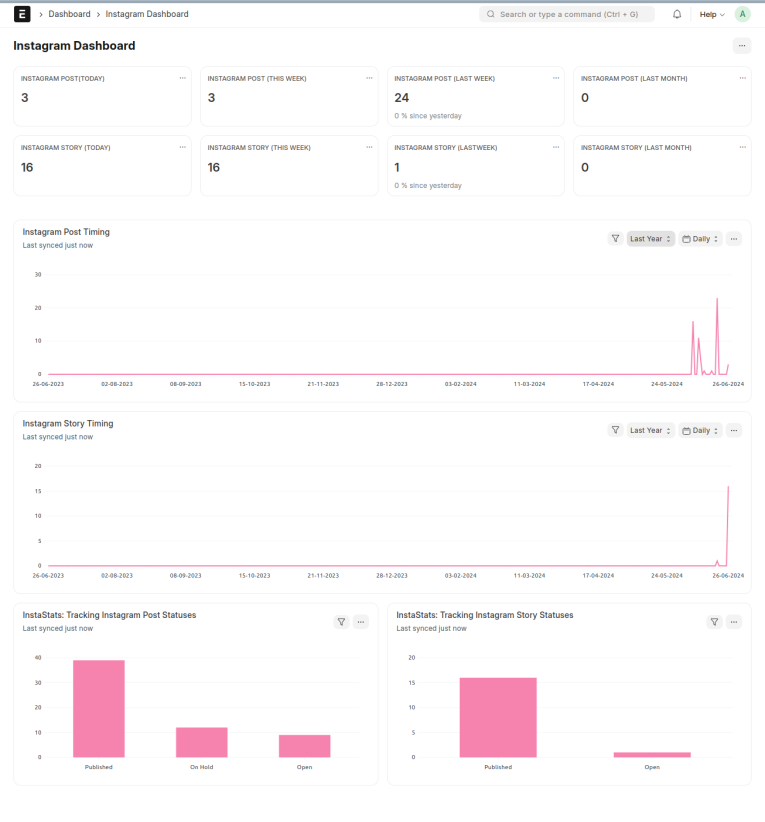
Instagram Dashboard
- The dashboard displays a variety of data visualizations, including number cards, line charts, and bar charts, providing a clear and insightful representation of key metrics.
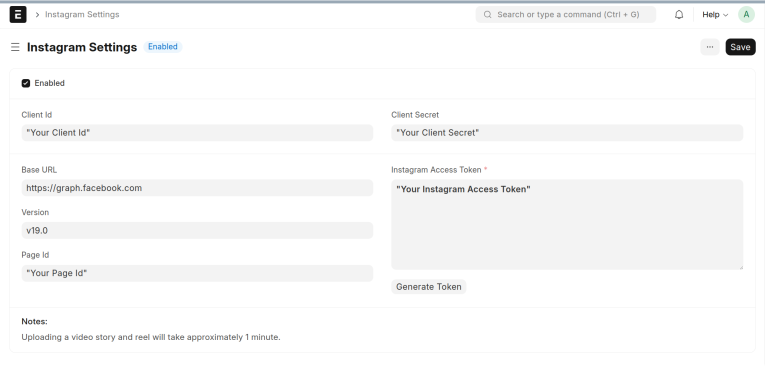
Instagram Settings
- Enabling the setting grants users access to features for uploading and deleting posts and retrieving leads from Facebook.
- Obtain the client ID and client secret from the Facebook app settings and set them up here. Fill in all the details here from the generated Graph API explorer.
- By default, the page access token time limit is set to one hour. To extend this limit, adjust the time limit in the page access token field and click "generate" to extend the access token's duration to 60 days. After generating, this process automatically repeats every 20 days.
Instagram Post
- To access Instagram posts, navigate to the post list and add and view posts from there.
- To add a new post, simply click on the "Add Instagram Post" button and create a new post.
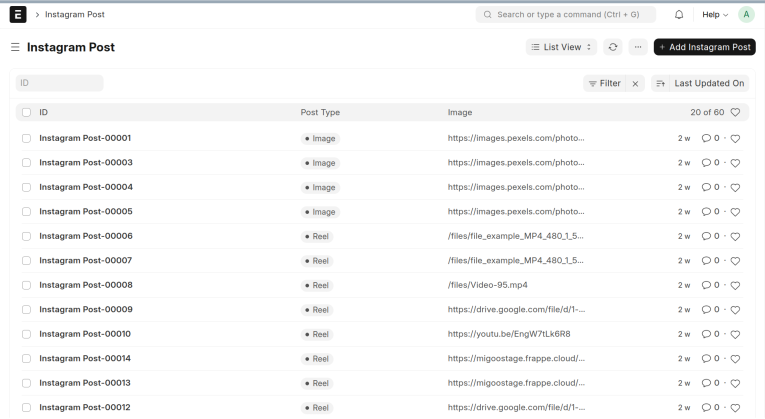
- Post Status:
- Open:- Upon creating a new post, the default status is set to "Open".
- On Hold:- If the system encounters any errors, the status is automatically set to "On Hold".
- Published:- Once the post is published, the status will be automatically set to "Published".
- Post Type:
- Reel:- If the user uploads a reel video, they need to select the post type as "Reel".
- Post:- If the user uploads a photo, they need to select the post type as "Post".
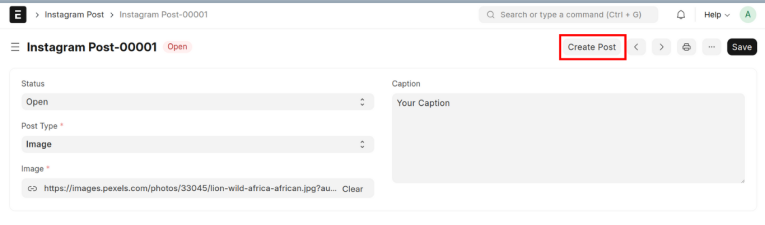
- If the user selects the post type as "Reel", they must upload a video in the proper reel format in the Attach field. Users can add tags and descriptions from the caption field.
- To publish the post on Instagram, click on the "Create Post" button.
Instagram Story
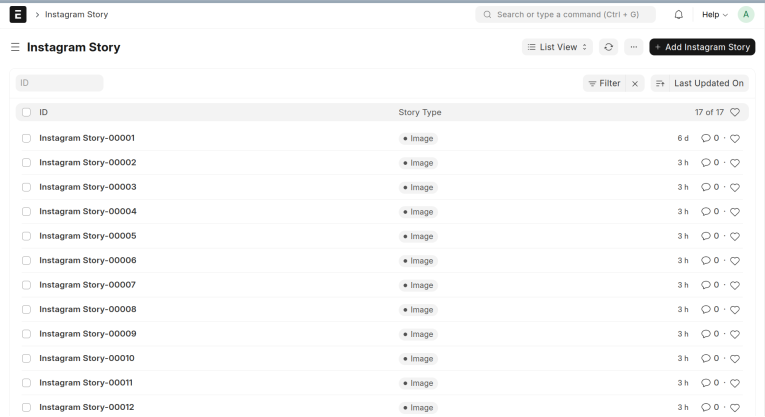
- To access Instagram Stories, go to the Instagram Story list.
- Story Type:
- Video:- If you upload a Video to your story, select the "Video" option in the story type.
- Image:- If you upload an image to your story, select the "Image" option in the story type.
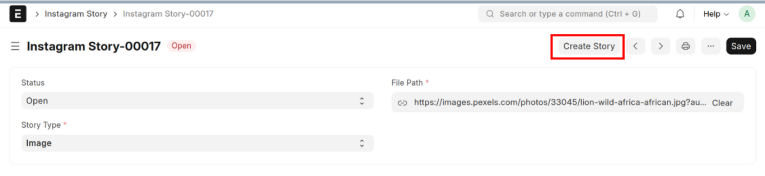
- By default, the status is set to "Open" when creating a new story after selecting the story type and attaching the image or video.
- To publish the story on Instagram, click on "Create Story".
- Note:- Uploading a video file to Instagram takes approximately 1 minute.
Support
FREQUENTLY ASKED QUESTIONS
ERPNext Instagram Integration connects your ERPNext system with Instagram, enabling you to manage social media activities, track performance, and automate marketing tasks directly from your ERP platform. This integration helps streamline your business operations related to social media, making it easier to engage with your audience.
By integrating Instagram with ERPNext, you can centralize your social media management, monitor analytics, automate post scheduling, and enhance customer engagement, all from within your ERP system. This saves time, improves efficiency, and ensures you get the most out of your Instagram presence.
The integration offers various features such as:
- Post scheduling and publishing directly from ERPNext.
- Tracking engagement metrics like likes, comments, and shares.
- Managing Instagram DMs within the ERP.
- Automated reporting on Instagram performance.
- Integration with ERPNext CRM to link social interactions with leads and customers.
No, the integration is designed to be user-friendly. Once set up, it can be easily used by anyone familiar with ERPNext or social media management. Our team provides full setup and training support to ensure you get the most out of the integration.
Yes, you can schedule Instagram posts directly through the ERPNext system. This feature allows you to plan and manage your content calendar more efficiently, without needing to switch between multiple platforms.
The pricing for ERPNext Instagram Integration varies based on your business requirements and the level of customization needed. Contact us for a personalized quote and more details on the cost structure.
We prioritize the security of your data. The integration adheres to Instagram's API security guidelines and ERPNext's in-built security features, ensuring safe and compliant usage.
Yes, you can integrate and manage multiple Instagram accounts from a single ERPNext instance, which is especially useful for businesses managing different brands or branches.
To get started, simply contact our team at Sanskar Technolab, and we will assist you with the integration process. We provide full support from initial setup to ongoing maintenance and training.


